Author: Chris Bartle

  • Building Windows Qt Applications Statically

    Overview

    Why Build Statically?

    For the Windows operating system, the simplest way to produce an application is the .exe file. An entire program can be contained inside a single file and it can easily be launched by clicking on it. Many applications written using Microsoft’s tools will produce files of this type – simple executables that are easy to pass around, require no installation, and run easily.

    Unfortunately, though Qt does produce .exe files, these applications usually have .dll dependencies. This means that instead of copying over a single file, the user must copy over a directory of supporting files (or install them). The bigger tragedy is that it doesn’t have to be this way: Qt can absolutely produce an entire application that resides entirely within a single .exe file but it can be difficult and time consuming to achieve this.

    This guide is to help software developers, some who may not have much experience with Windows development experiment, build and release Qt software statically so that it resides in a single file.

    Windows Development Machine

    For the purpose of this guide, I am doing all of my development inside a Windows 11 virtual machine that is hosted in Linux using KVM and QEMU. I prefer to do my development inside of VMs whenever possible as development software will occasionally run into problems that can be fixed most easily by just deleting everything and starting over.

    This virtual machine has the following attributes:

    • 16 GB RAM
    • 400 GB disc space
    • 8 CPUs
    • Bridged network

    It has been updated to the latest Windows version and has the appropriate Linux drivers installed (virtio win guest tools).

    Compiler Notes

    In this guide I will be standardizing on Microsoft’s MSVC compiler. The purpose is to build standard Windows-compatible code and MSVC does a fine job with that.

    I am also building and using both the debug and release libraries. You may not need the debug library, your intention may be to just build a release version, but having access to the debug library will be useful if your product glitches in production. You’ll have the tools in this environment to run it in debug mode using the static library.

    Licensing Notes

    The Qt libraries and tools are free to use for the purpose of developing open source software. In this guide, I identify myself as an open source developer and use the open source license. This guide may be useful to someone who using doing commercial development but the license type must be set correctly.

    Installation

    Before Qt applications can be built, I recommend installing the following software packages.

    Git

    Though not strictly necessary, I strongly recommend installing Git on the local system as it will be used to pull down the most current version of the Qt library as well as example applications.

    Git for Windows is available at https://git-scm.com/install/windows

    I chose the Standalone Installer, Git for Windows/x64 Setup

    During install, I used the default settings:

    Beyond that, I chose the following:

    • Vim as the default editor
    • Let Git decide on the default branch name
    • Git from the command line and also from 3rd-party software
    • Use the native Windows Secure Channel library
    • Checkout Windows-style, commit Unix-style line endings
    • Use MinTTY as the terminal emulator
    • Merge on git pull
    • Git Credential Manager
    • Enable file system caching but not symbolic links

    Other settings were glossed over because they’re probably not important for this guide.

    Qt Creator

    It may actually be possible to build Qt applications using only Visual Studio but I’ve always installed and used Qt Creator. If nothing else, it provides a fallback option if things aren’t building in Visual Studio.

    For installation, I use the Qt Online Installer (GUI version) located at https://doc.qt.io/qt-6/qt-online-installation.html. A Qt account is required to access the installation file – this account is free for open source work.

    Once you are running the installer, you will have to provide your Qt credentials in order to install the software. I affirm to Qt that I am an open source developer.

    I want to install Qt 6.11 for desktop development as well as do a Custom Installation:

    Since I chose Custom Installation, I want to make sure I also install the following:

    • Qt Creator
    • Qt (in this case 6.11.2)
      • MSVC 64 bit
      • Sources
      • Additional Libraries? I don’t worry about that since we’ll be building from source anyway
    • Qt Design Studio

    If you forget anything, you can always go back and re-run the Qt Installation tool again.

    Visual Studio

    Visual Studio is Microsoft’s professional software development IDE but it is freely available for open source developers. The installer can be downloaded at https://visualstudio.microsoft.com/downloads/.

    Visual Studio offers a lot of development options during install but the one you really need is Desktop development with C++:
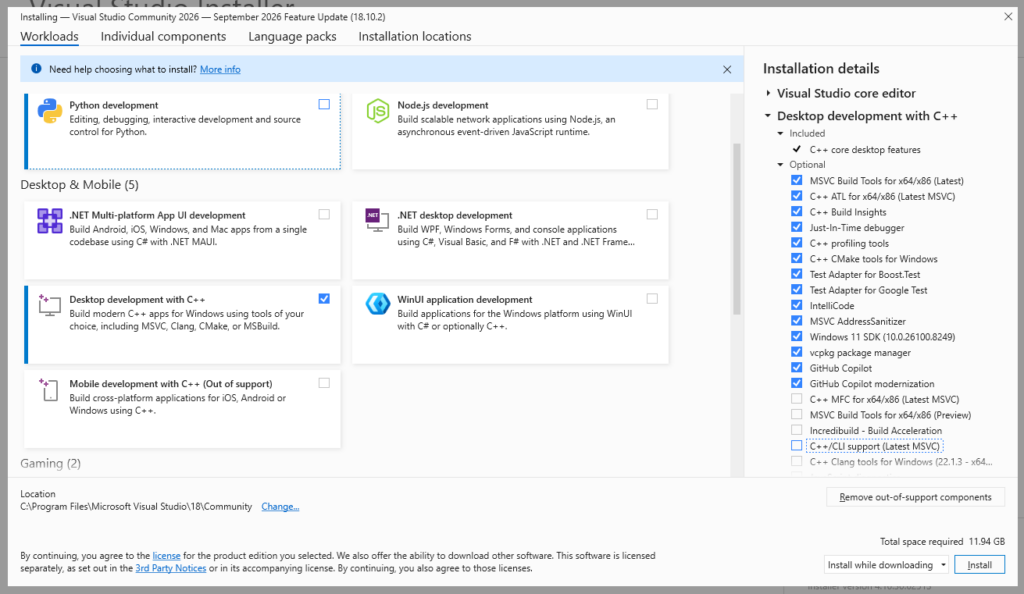
    Installation will take a little time.

    Once Visual Studio has been installed, we also want to make sure that debugging tools are installed. This can be done by going to Installed Apps then going to Windows Software Development Kit and pressing Modify. Choose Change to be given the feature list, then you can make sure that Debugging Tools for Windows is turned on:

    Python

    The Qt library is dependent on Python in order to build. The easiest way to install Python in Windows is:

    Open the command prompt

    Type Python

    The Microsoft Store will open with the option to install Python:

    Once installation is complete a command window will open with the Python installation Manager configuration helper:

    • Yes, configure Windows to allow paths longer than 260 characters
    • Yes, configure the global shortcuts directory
    • Yes, install the latest Python runtime (for me it is 3.14.7)

    Python is now installed and ready for the build process

    Reboot

    Windows likes reboots so once you have all of the software installed, make sure it gets in at least one reboot.

    If you run into any unexpected errors following this guide, go ahead and reboot then as well.

    Building the Qt Static Library

    Now with all of the appropriate parts installed, it’s time to get the Qt source code and to build the library.

    I am going to recommend and use shadow builds here. What that means is that I will by copying the source to a separate directory and then building the library there. I do it this way so that if anything goes wrong during the build process I can just delete the shadow build directory and start over – the source directory remains untouched.

    Getting the Qt Source

    There are two ways to get the Qt source code: you can copy from the files you already installed when you installed Qt or you can grab the source using git.

    Source SourceSource Size
    Default Install1.06 GB
    git Essentials2.49 GB
    git Everything11.4 GB

    Copy from Install

    If you did as I did, you installed a copy of the source when you installed Qt. In this situation, all one needs to do is copy it into a new directory.

    So I copied C:\Qt\6.11.2\Src into C:\Qt\6.11.2\Src-build

    Git source

    It is also possible to just use git to pull the correct source. An nice thing about this approach is that it’s possible to grab the precise version of the git source that you want:

    C:\Qt\6.11.2>git clone git://code.qt.io/qt/qt5.git Src-build
    Cloning into 'Src-build'...
    remote: Enumerating objects: 56036, done.
    remote: Counting objects: 100% (54164/54164), done.
    remote: Compressing objects: 100% (17424/17424), done.
    remote: Total 56036 (delta 41806), reused 46977 (delta 36054), pack-reused 1872
    Receiving objects: 100% (56036/56036), 13.92 MiB | 3.34 MiB/s, done.
    Resolving deltas: 100% (42270/42270), done.
    Updating files: 100% (3053/3053), done.

    A couple of things to note here. First, Qt versions 5 and 6 share the same repository so we’re cloning Qt 5 deliberately. The second thing is that in order to get the correct version, we much change to the correct branch. As I am working with version 6.11.2, that is the branch I will switch to:

    C:\Qt\6.11.2>cd Src-build
    C:\Qt\6.11.2\Src-build>git switch 6.11.2
    branch '6.11.2' set up to track 'origin/6.11.2'.
    Switched to a new branch '6.11.2'

    Then you must initialize submodules. My approach is to just initialize the essential submodules using the following command (note that you must use x64 Native Tools Command Prompt here to make cmake available):

    C:\Qt\6.11.2\Src-buildgitess>init-repository.bat --module-subset=essential
    + git config --get initrepository.initialized
    + git config remote.origin.url
    + git submodule init qtrepotools qtbase qtimageformats qtshadertools qtsvg qtlanguageserver qtdeclarative qtactiveqt qttools qttranslations qtquicktimeline qtquick3d qtmultimedia qttasktree qtwebsockets qtwebchannel qtserialport qtpositioning qtwebengine qtdoc qtqa
    Submodule 'qtactiveqt' (git://code.qt.io/qt/qtactiveqt.git) registered for path 'qtactiveqt'
    Submodule 'qtbase' (git://code.qt.io/qt/qtbase.git) registered for path 'qtbase'
    Submodule 'qtdeclarative' (git://code.qt.io/qt/qtdeclarative.git) registered for path 'qtdeclarative'
    Submodule 'qtdoc' (git://code.qt.io/qt/qtdoc.git) registered for path 'qtdoc'
    Submodule 'qtimageformats' (git://code.qt.io/qt/qtimageformats.git) registered for path 'qtimageformats'
    Submodule 'qtlanguageserver' (git://code.qt.io/qt/qtlanguageserver.git) registered for path 'qtlanguageserver'
    Submodule 'qtmultimedia' (git://code.qt.io/qt/qtmultimedia.git) registered for path 'qtmultimedia'
    Submodule 'qtpositioning' (git://code.qt.io/qt/qtpositioning.git) registered for path 'qtpositioning'
    Submodule 'qtqa' (git://code.qt.io/qt/qtqa.git) registered for path 'qtqa'
    Submodule 'qtquick3d' (git://code.qt.io/qt/qtquick3d.git) registered for path 'qtquick3d'
    Submodule 'qtquicktimeline' (git://code.qt.io/qt/qtquicktimeline) registered for path 'qtquicktimeline'
    Submodule 'qtrepotools' (git://code.qt.io/qt/qtrepotools.git) registered for path 'qtrepotools'
    Submodule 'qtserialport' (git://code.qt.io/qt/qtserialport.git) registered for path 'qtserialport'
    Submodule 'qtshadertools' (git://code.qt.io/qt/qtshadertools.git) registered for path 'qtshadertools'
    Submodule 'qtsvg' (git://code.qt.io/qt/qtsvg.git) registered for path 'qtsvg'
    Submodule 'qttasktree' (git://code.qt.io/qt/qttasktree.git) registered for path 'qttasktree'
    Submodule 'qttools' (git://code.qt.io/qt/qttools.git) registered for path 'qttools'
    Submodule 'qttranslations' (git://code.qt.io/qt/qttranslations.git) registered for path 'qttranslations'
    Submodule 'qtwebchannel' (git://code.qt.io/qt/qtwebchannel.git) registered for path 'qtwebchannel'
    Submodule 'qtwebengine' (git://code.qt.io/qt/qtwebengine.git) registered for path 'qtwebengine'
    Submodule 'qtwebsockets' (git://code.qt.io/qt/qtwebsockets.git) registered for path 'qtwebsockets'

    Alternatively, you can bring over all of the submodules but be warned, this will result in a much larger build than I am doing here:

    C:\Qt\6.11.2\Src-build>configure.bat -init-submodules

    Performing the Build

    We now assume that the Qt library source code is in a shadow build directory (in this example it is c:\Qt\6.11.2\Src-build). We will also need to define the directory where to compiled library will live; in these examples I will be using C:\Qt\static\6.11.2_MSVC_64 .

    Make sure that you have enough space for this process. My build directory (with just the essentials) weighs in at 122 GB and the static library is 19.6 GB.

    We will be building using the MSVC compiler that was installed with Visual Studio. To facilitate this, we will be performing all of the builds using x64 Native Tools Command Prompt (this can be found by searching the start menu.

    I then enter the following commands:

    C:\Program Files\Microsoft Visual Studio\18\Community>cd \qt\6.11.2\Src-build
    C:\Qt\6.11.2\Src-build>configure.bat -static -debug-and-release -prefix C:\Qt\static\6.11.2_MSVC_64 -platform win32-msvc -opensource -confirm-license -nomake examples -nomake tests -skip qtwebengine -static-runtime -force-debug-info -optimize-size
    C:\Qt\6.11.2\Src-build>cmake --build . --parallel
    C:\Qt\6.11.2\Src-build>ninja install

    A few remarks on the options that I handed configure.bat

    • -static – Executable binary should contain all necessary Qt modules and plugins
    • -debug-and-release – As mentioned above, we’re going to build both the debug and release versions so that we can diagnose any problems we come across
    • -prefix – This is the directory where the static library will live
    • -platform – This should be set to win32-msvc because we’re compiling with MSVC; this supports 64 bit
    • -opensource and -confirm-license – As stated above, this library is only usable for open source work
    • -nomake – We’re not building the examples or the tests
    • -skip – We don’t want to make qtwebengine because it’s big and complicated and doesn’t play well with debug-and-release
    • -static-runtime – With MSVC, this changes the compiler’s runtime flag from /MD to /MT
    • -force-debug-info – Doesn’t really affect the final build but makes debugging a little easier
    • -optimize-size – Makes the .exe a little smaller at a potential performance cost

    In my virtual machine, this build takes many hours to complete. Once it is done and the libraries have been installed, it makes sense to delete the build directory in order to free up 100+ GB of space on your machine.

    Configuring the IDEs

    Once the static library has been built and installed, it is necessary to configure the Integrated Development Environments to point to it.

    Configuring Qt Creator

    In order to make the static build library in Qt Creator, you must go to Edit -> Preferences -> Kits.

    First check the Compilers tab and confirm that the Visual Studio MSVC compilers are available:

    The go to Qt Versions and press Add… to add the library we just built. Specifically we need to point it to the location of qmake.exe which for me is c:\Qt\static\6.11.2_MSVC_64\bin\qmake.exe.

    Now go to the Kits tab and press Add to add a new kit. Here is what I filled in:

    • Name: Desktop Qt Static 6.11.2 MSVC 64bit
    • Compiler: Visual Studio Community… (amd64)
    • Debugger: Auto-detected CDB (64 bit version) (this option requires Debugging Tools for Windows to be installed, see above)
    • Qt Version: Qt 6.11.2 (6.22.2_MSVC_64) (mouse over the options to locate the static build)

    Then I pressed Apply to save:
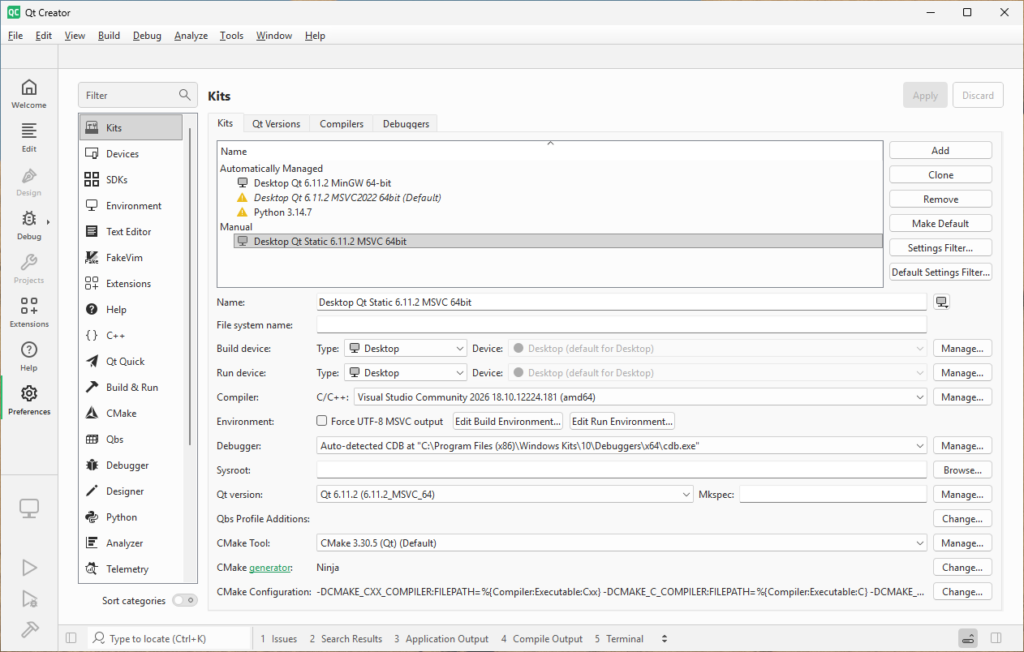
    Configuration is complete, we can now build and debug static applications using Qt Creator.

    Configuring Visual Studio

    The easiest way to build Qt projects in Visual Studio is to install the Qt extension. To do this, in Visual Studio, navigate to Extensions -> Manage Extensions… then install Qt Visual Studio Tools:
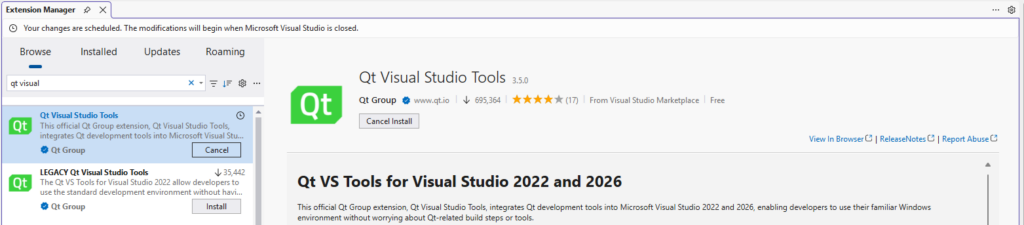
    Once installation is complete, close Visual Studio and re-open. You will see a message asking you to select a Qt version to use for development:

    In the options menu, I choose Autodetect so that Visual Studio can find all of the Qt libraries, then I select the static library and make it the default:
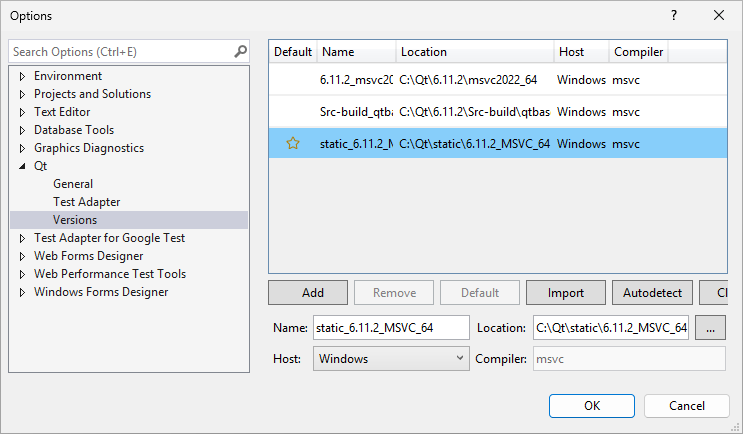
    If you need to access those settings in the future, they can be found under Tools -> Options -> Qt.

    Building Qt Statically

    Now that all of the pieces are in place, installed, and configured, we can finally build some static .exe files!

    The below examples explain how to do this using Qt Creator and Visual Studio. Both IDEs are capable of building and debugging Qt projects but it is not recommended that you use both IDEs on the same directory at the same time. If you do need to use both, I recommend developing in separate directories and keeping the code synced with Git.

    Qt Creator Calculator Build

    Qt provides a number of wonderful example applications and Qt Creator makes accessing these examples very simple – just look under the Examples tab. For this demonstration, I’m going to choose the Calclatr application:

    I choose the application which causes Qt Creator to load it. The Configure Project menu immediately appears. In order to guarantee that the builds are static, I’m going to uncheck the default configuration (Desktop Qt 6.11.2 MinGW 64-bit) and check both the Debug and Release options for the Desktop Qt Static 6.11.2 MSVC 64bit:

    Then I press Configure Project in the lower right to open the project. At this point I can easily go to Build -> Build All Projects for All Configurations. I navigate to C:\Qt\Examples\Qt-6.11.2\demos\calqlatr\build\Desktop_Qt_Static_6_11_2_MSVC_64bit_Release to see that there is now a statically generated calqlatr.exe file that can be run on any Windows machine.

    If you even need to remove the build and configuration files for Qt Creator, simply delete these following directories from the source:

    • .qtcreator
    • build

    Visual Studio Calculator Build

    Now let’s build the Qt example calculator application using Visual Studio. We open Visual Studio, select Open a project or solution, and then direct it to open c:\Qt\Examples\Qt-6.11.2\demos\calqlatr\CmakeLists.txt. This causes Visual Studio to load the project:
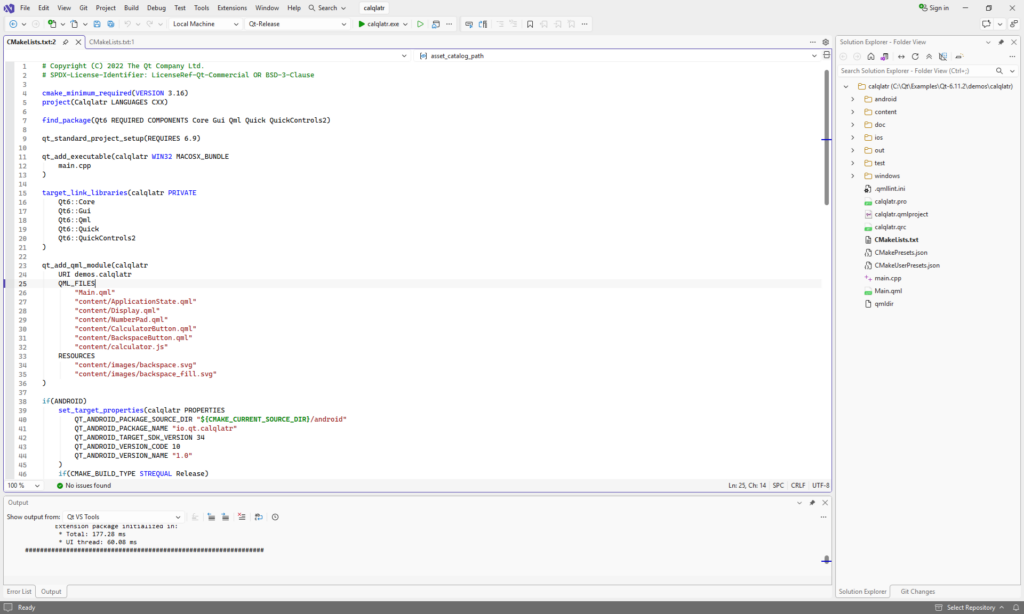
    Of course, we can run and debug it here but if you want to get a release build, change the combo box at the top of the screen from Qt-Debug to Qt-Release, then Build -> Build All. The compiled file will be located at c:\Qt\Examples\Qt-6.11.2\demos\calqlatr\out\build\release\calqlatr.exe.

    If you even need to remove the build and configuration files for Visual Studio, simply delete these following directories from the source:

    • .vs
    • out
    • CMakePresets (file)
    • CMakeUserPresets (file)

    Final Notes

    I’m leaving out WebEngine because it dramatically increases the complexity to build (it apparently doesn’t use cmake).

    Many aspects of Qt use OpenGL to display graphics. In theory, so long as the OpenGL defaults are maintained, a statically compiled Qt application will use an alternative translator so that the application can be viewed in environments where there is no graphics accelerator (such as using a remote viewing tool or a virtual machine). In practice, a few Qt elements really do require graphics acceleration to run (such as the Qt movie viewer). If the goal is universal compatibility, it is important to test the applications inside virtual machines and remotely.

    Conclusion

    I hope the information in this document will give developers the freedom to create more standalone, click-to-run applications and utilities. For most smaller utilities, it really is possible to publish the entire thing as a single .exe.
  • Rewriting and Replacing Old Software Systems

    (this is a repost of the original article at LinkedIn)

    The software industry is full of training and examples on how to properly design, engineer, and code good software. What is discussed much less is how a trained software engineer should take an existing software system and convert it to a new system. There are a lot of good reasons this might need to be done: perhaps the old system relies on outdated hardware, perhaps there are licensing concerns, or perhaps it is considered insecure. Whatever the reason, this unfortunate situation is one that most software engineers should expect to see in their career.

    In my experience, there are two solid approaches for a software rewrite:

    • A green field approach where new software is written from scratch to replace the old system
    • A 1:1 replacement where the new system tries to duplicate the precise functionality of the old system

    At first glance, the first approach feels like a much better option. The old software system probably has a lot wrong with it and it is easy to envision how appealing a modern refresh would feel. Most software engineers are quick to push for green field because it grants them the opportunity to use the latest technologies. The central questions when considering this approach are: Do you know what the old system does? Do you know everything the old system does? Are you sure?

    Both Netscape and Nokia are examples of how a green field rewrite can fail spectacularly (Navigator and Symbian rewrites specifically). Hopefully a development team is humble and thoughtful enough to really question and investigate what is involved in a true rewrite. Perhaps upon reflection the team will opt to go in the complete opposite direction and decide to simply convert over the existing code, creating a 1:1 exact replacement of the old system.

    The biggest advantage of attempting a 1:1 replacement of an existing system is that it makes it possible to directly compare the output of the new system with that of the old. This approach opens the door to an incremental verification technique that can give the development team confidence that their replacement is no worse than the original. If the original system is very important then this becomes a completely reasonable approach.

    There are downsides to a 1:1 replacement of course. In addition to giving up the opportunity to make the old software modern, this approach also brings forward all of the bugs and baggage that the old system has as well. Most depressingly, other than perhaps cutting off some licensing costs or tossing several cubic meters of old mainframe into the trash, this approach hasn’t actually made the situation any better. Well, couldn’t a team just complete a 1:1 rewrite and then improve and modernize the code later? Sadly in my experience I’ve found that once the rewrite is complete and the code is in production then it can be hard to justify further improvements or changes.

    If both approaches have downsides, what about a hybrid approach? This can seem very appealing, a chance to combine the best of both worlds into a new excellent product. On the contrary, a hybrid approach is much more dangerous and fraught than either of the above approaches and it’s very likely that the team’s timeline will slide as they suffer development failure and delay. The reason is that a hybrid approach leaves nothing solid to stand on: the team can neither rely on code engineering principles nor on correctness compared to the original code.

    At this point it is worth discussing the 3rd option. A 3rd option? Why wasn’t that on the original list? It wasn’t listed because no one is going to want to do it this way, no one is going to want to pay for it, and no one is going to suggest it. The approach is to replace the old system piecemeal. Though it sounds simple it is anything but: both systems must be maintained in parallel and brought into synchronization. New costs stack on top of old costs making the process very expensive with no immediate relief to look forward to. Even worse, the new and old systems eventually become intertwined and inseparable which limits cost cutting options going forward. In physical terms this approach is like building a 2nd highway to divert traffic while work is done on the original highway – very expensive but perhaps very necessary. If one is willing to accept the costs however, this approach can lead to what everyone actually wants: a new system that can do everything the old system did.

    In summary, here is how I would recommend evaluating the options when it comes to replacing an existing software system:

    • Replacing the old system piecemeal is generally the best approach albeit the most expensive. If you can afford to do it this way, do it this way.
    • If the new system has to work (it is core to the business), opt for a 1:1 replacement.
    • Green field development can produce an excellent upgrade but be prepared to lose functionality and possibly customers.

  • Pushing Microsoft Onedrive to the Limit

    Overview

    Microsoft OneDrive is a file syncing utility that is included on the Microsoft Windows operating system. Its purpose is to synchronise the user’s personal files so that they are always available on Microsoft’s servers. The intention is to provide the user with security (their personal files are constantly being backed up) and the opportunity for Microsoft to make a profit (Microsoft charges for storage space).

    Technically what OneDrive is attempting to do here is called “bi-directional syncing” and it is extremely difficult to pull off. To understand why, imagine two computers that are kept synchronized with each other; now imagine that two users edit the same file at the same time. Which file is now the correct one? Is there a correct one? How do you merge their changes? Ideally these questions should be answered automatically, seamlessly, and correctly by the underlying system.

    Microsoft’s advantage here is that they have written and control the entire operating system. If anyone is in a position to build a high quality syncing system, it’s them.

    Testing Scenario

    To test OneDrive, I have created two QEMU virtual machines. Each machine runs Windows 11 Home (25H2), has 16GB of RAM, and 8 CPUs. Both machines shared a logged-in user who has access to the free OneDrive account (5GB free space). The machines are connected to the Internet at gigabit speed.

    Most of the tests are being done with my Dummy Directory software, which can quickly generate large amounts of test data. I have told OneDrive to “Always keep on this device” the test data.

    Microsoft published this document which lists OneDrive’s limitations. Among these are:

    • 250GB maximum file size
    • They recommend syncing no more than 300,000 items are one time
    • Recommend Windows 11 with 16GB – 32GB of RAM and Intel i5 / AMD Ryzen 5 or later (I’m running Ryzen 7)

    Simple Conflicts

    The simplest test, to start out, is to create a basic text file that is shared on both systems. Then I attempt to change the file in different ways on both systems at the same time.

    For a small file, syncing was very fast; it only took a few seconds after I saved the file on the first system for the changes to show up on the second. Unfortunately when both files were edited at the same time the results were inconsistent and sometimes destructive: in one situation the changes were lost, in others OneDrive would create a duplicate file with the alternative changes.

    We will return to this test later, but in a more complicated scenario.

    Photographer Scenario

    For this scenario, let’s imagine someone who uses their computer to store photographs. I’ll use Dummy Directory to create 1GB worth of test data across 100 directories with each file sized at between 2 and 10 MB. This is pretty tame; my personal photo store has over 47,000 photos and is nearly 350GB in size.

    dadd --count=100 --seed=110b3501c02c7e5c
    add --size=1g --seed=b84e8de13e40523c --filetype=binary --filesize=2m-10m
    # 160 items processed. 1,073,741,824 bytes written in 15.285976 seconds (70,243,589.55 bytes per second)
    # Manifest contains 101 directories and 160 files.
    # 1,073,741,824 bytes total.

    It took less than 3 minutes to generate this data and for the second machine to synchronize.

    Now let’s run through the basic paces and try a variety of file and directory operations:

    • Rename 25% of the files – a few seconds
    • Move 25% of the files – a few seconds
    • Rename 25% of the directories – a few seconds
    • Move 25% of the directories – a few seconds

    This is actually pretty impressive, it shows that Onedrive tracks filesystem operations and can re-apply them during sync. Other synchronization software would interpret a directory renaming as a delete followed by an add and end up re-syncing the entire directory.

    Finally, let’s perform a bulk file modification. A photographer may occasionally need to change EXIF data across all of their photos; we can simulate that here by appending a small amount of data to each file:

    modify --modifytype=append --filesize=100-200 --count=100% --seed=42c337f59cb11461
    # 160 items processed. 24,267 bytes worth of changes in 6.741356 seconds (3,599.72 bytes per second)
    # The total size of all affected files is 1,073,766,228 bytes
    # Manifest contains 101 directories and 160 files.
    # 1,073,766,228 bytes total.

    This change was OK, it took about a minute and a half to sync. Judging by the bandwidth use, I’d judge that it basically re-transmitted all of the files rather than just the parts that were changed. Other syncing software operates more efficiently with these type of operations.

    Videographer Scenario

    For the next round of testing, I’ll focus on large files, similar to the video files that a videographer might use. Since we’re testing using a free account, and thus limited to 5GB total, we’ll just create a few 500MB files (5 total for 2.5GB of data):

    add --filetype=binary --filesize=500m --count=5 --seed=9fa675880d920229
    # 5 items processed. 2,621,440,000 bytes written in 39.894490 seconds (65,709,324.77 bytes per second)
    # Manifest contains 1 directories and 5 files.
    # 2,621,440,000 bytes total.

    Once again OneDrive was efficient, transferring these new files to the other machine in less than 2 minutes.

    Now lets see what happens if we perform a bulk modification on them, changing a little data inside each one:

    modify --count=5 --seed=d8c4331004438f8c --filesize=5%-100%
    # 5 items processed. 830,006,026 bytes worth of changes in 21.826915 seconds (38,026,721.00 bytes per second)
    # The total size of all affected files is 2,220,676,112 bytes
    # Manifest contains 1 directories and 5 files.
    # 2,220,676,112 bytes total.

    Notice that 830MB of changes were made but Onedrive once again opts to sends the entire file. It appears that large file synchronization does work, albeit inefficiently. The update took less than 2 minutes though I credit this more due to the gigabit speed of my Internet connection.

    Large File Count

    OneDrive has proven adept at handling large files but how does it handle a large number of files? Ideally I’d do a large number of large files but given that I’m working inside of OneDrive’s 5GB free storage limit, I’ll have to make due with a large number of small files.

    I’ll have Dummy Directory create 100,000 files (well below the OneDrive 300,000 recommended limit) with file sizes ranging between 1KB-10KB. I’ll also create 1,000 directories to keep them in:

    dadd --count=1000 --seed=712f76c77a3daee5
    add --count=100000 --seed=63812e5d524c5ec5 --filesize=1k-10k
    # 100,000 items processed. 563,957,828 bytes written in 318.569598 seconds (1,770,281.38 bytes per second)
    # Manifest contains 1,001 directories and 100,000 files.
    # 563,957,828 bytes total.

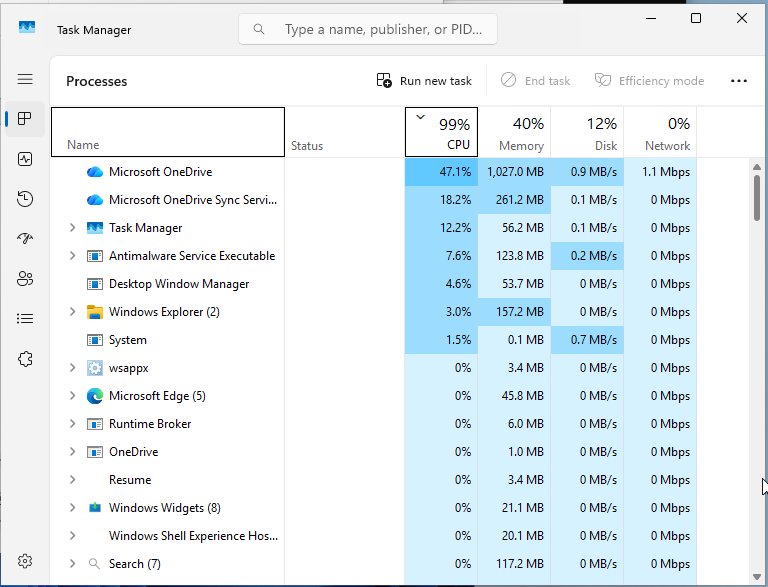
    Though I’m actually dealing with less data than the previous tests, at this point the Windows environment slows to a crawl. All of the machine’s processing gets diverted to File Explorer and OneDrive processes.

    Whereas the previous tests could fully sync the data in less than 2 minutes, this test takes over 7 hours to complete.

    As before, I’ll run through the basic paces and try a variety of file and directory operations:

    • Rename 25% of the files – 2 hours

    Ok, nevermind, forget the rest of the operations. Not only did that take 2 hours to run but for the time being the machine is nigh unusable. Windows Explorer is hogging most of the available resources and is extremely unresponsive – taking several minutes to open a new window.

    OneDrive does show ongoing processing. It looks like after syncing with OneDrive the machine is syncing back the changes it just made. On one hand that’s strange but on the other hand it’s a massive waste of resources that is keeping my machine from being usable.

    OneDrive has made it perfectly clear that I will be punished for any future large scale operations. I’m going to give the machine time to finish it’s processing and then pivot to a different approach.

    (Renaming the files took over 5 hours to complete)

    Small Changes Among a Big File Count

    A reasonable question at this juncture then is: does the presence of a large number of files impact the ability of OneDrive to process smaller changes? To find out let’s rerun the photographer baseline from above by creating 1GB of data across a smaller number of files.

    dadd --count=100 --seed=42e5606ed54d67d9
    add --size=1g --seed=a65f50ebee2b67cb --filetype=binary --filesize=2m-10m
    # 164 items processed. 1,073,741,824 bytes written in 15.367765 seconds (69,869,746.51 bytes per second)
    # Manifest contains 101 directories and 164 files.
    # 1,073,741,824 bytes total.

    It took less than 2 minutes to synchronize this data, consistent with the previous test. It would appear that the simple presence of files doesn’t have an impact on OneDrive’s performance.

    One consequence I detected when performing changes on a large number of files is that it jams up OneDrive’s synchronization. Since it appears that file changes are synced in the order that they’re made, it means that a recent file change can’t be synced until all of the previous changes are synced first. Interestingly it also gives priority to changes made on machines that are not undergoing a massive change.

    Finding OneDrives’s Breaking Point

    These tests so far have established that OneDrive handles 100 easily while 100,000 files sends it into a nervous breakdown. This prompts poking at it a bit more, trying different numbers of files, and getting an idea of at what point it really starts to slow down.

    For this next test, I start with an empty directory and add a given number of files (each one sized between 1k and 10k), then time OneDrive to see how long processing takes:

    Number of FilesTotal SizeTime for Initial Sync
    100.6 MB< 1 minute
    1,0006 MB3 minutes
    10,00056 MB37 minutes
    25,000142 MB1 hour 44 minutes
    50,000
    (+ 100 directories)
    282 MB3 hours 55 minutes
    100,000
    (+ 100 directories)
    566 MB6 hours 14 minutes

    These numbers reveal a linear relationship, one where OneDrive can apparently process around 200-300 files per minute. At no point, however did OneDrive break – in fact I will reluctantly admit that OneDrive’s tolerance for processing 100,000 files is greater than mine.

    This set rate of processing raises another possibility however: what would happen if a process ran continuously at a rate faster than OneDrive could keep up with? I ran the following command:

    dummydir add -c 500 --filesize=1k-10k test

    Which created a directory with 500 files in it. Once both machines had the opportunity to fully synchronize it (only taking a couple of minutes to accomplish), I executed this batch script:

    @echo off
    :loop
    dummydir modify --modifytype=overwrite -c 500 test
    timeout /t 60
    goto loop

    In essence, all 500 files are modified every minute (though random, typically around 1.5 MB of data is changed each time). Since previous tests indicated that OneDrive can only send the complete files (not just the changes), this means that all 500 files will need to be transmitted every minute, something that OneDrive has so far shown an inability to do.

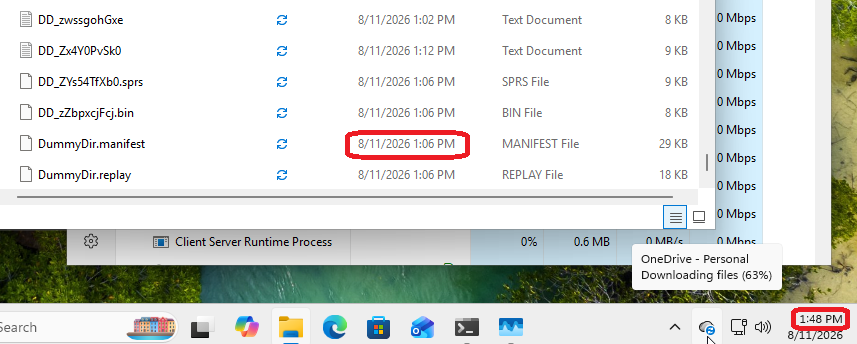
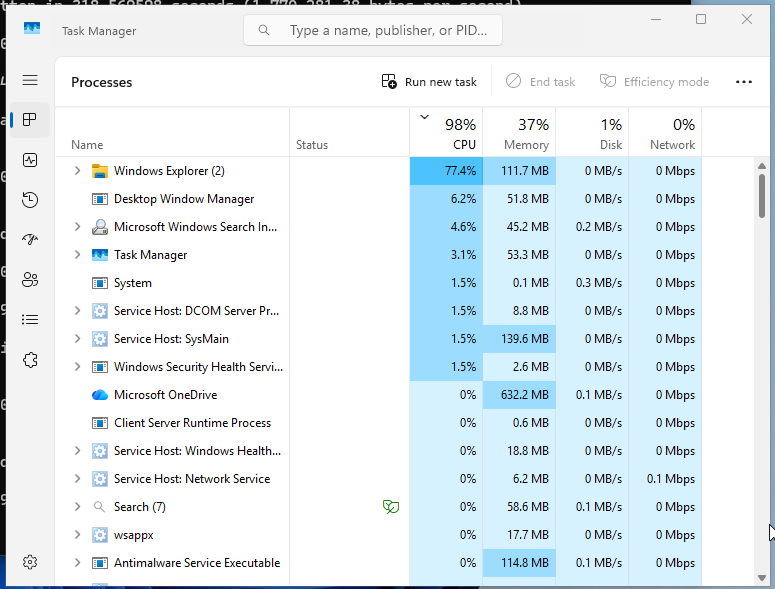
    After about 90 minutes of continuous churn, we can see that the second machine is having real difficulty keeping up with the most current version:

    This situation is fairly unique to OneDrive. Most synchronization software simply makes a best effort to copy the data over but since OneDrive slavishly insists on copying every change over, in order, it can fall pretty far behind.

    I let my process run for 8 hours and then turned it off. I can report that OneDrive did not completely replay every missed step but actually synchronized itself within 4 minutes.

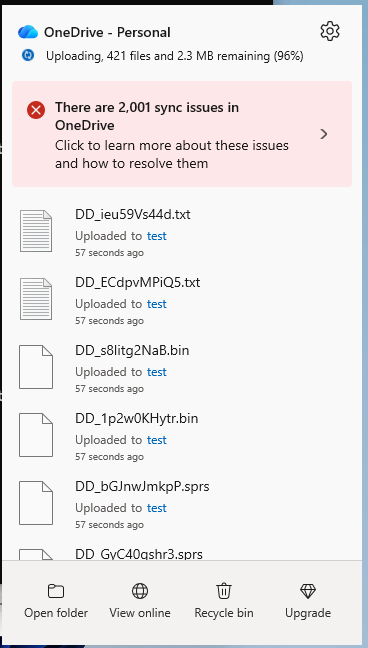
    Next I stepped things up a little. Same process as before but I increased the directory size to 2000 files (11 MB total). OneDrive struggled more this time and I finally witnessed evidence of its struggle:

    Even though I ran this process for only 2 hours, it took about 12 minutes to get both systems synchronized after it ended.

    These two churn tests replicate a behavior one might see in the real world; it is easy to imagine an application that is continually altering a large number of files and OneDrive struggles to keep up with. It is less reasonable to imagine an application that is constantly adding and deleting files… and that is exactly what I’m going to try next:

    dummydir dadd -c 100 test
    dummydir add -c 5000 --filesize=1k-10k

    That sets up us nicely with a base directory that contains 100 subdirectories and 5000 files. Then we institute a continuous job that deletes 3000 files and adds 3000 files every minute:

    @echo off
    :loop
    dummydir delete -c 3000 test
    dummydir add -c 3000 --filesize=1k-10k test
    timeout /t 60
    goto loop

    This process I ran for about 10 1/2 hours and during that time OneDrive was completely stuck – unable to pretty much sync anything. I stopped it and OneDrive remained stuck in a loop, processing files that were long since deleted, and unable to sync new files that I created. 8 hours and 7 minutes later the synchronization process finally completed and the 28 MB of files were on both computers.

    Could this kind of problem occur in the real world? It absolutely could. Plenty of software write temporary files onto the file system and quickly delete them after. Based on this testing, it’s evident that running such software would block synchronization not just while it is running but also for potentially a long time afterward.

    Conflictapolooza

    My final question is, what happens if two programs unrelentingly and continuous modify the same directory of data? OneDrive acts gracefully if, say, a user accidentally edits a text file on two computers at the same time: it creates a copy of both versions. What does it look like though if we do something a tad more aggressive?

    I created a simple directory of 20 files:

    dummydir add --count=20 --filesize=1k-10m test

    Then I created the following batch script that will modify 5 of the files at random every second or so:

    @echo off
    :loop
    dummydir modify -c=5 --modifytype=overwrite test
    timeout /t 1
    goto loop

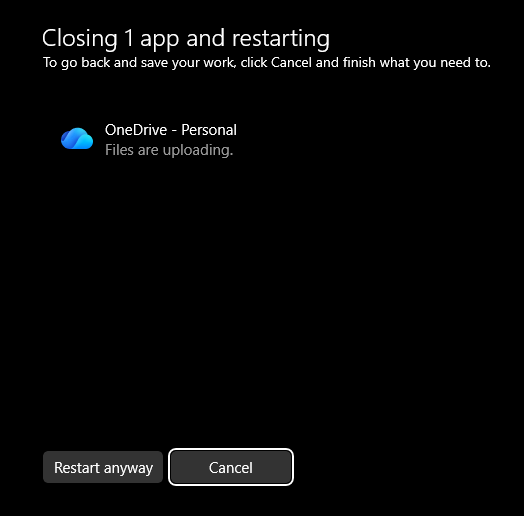
    Then I set both machines loose, running the same batch script at the same time. I let it run for 5 minutes and then waited for the machines to finish synching. After about 90 minutes of failing to sync, I rebooted the problematic machine:

    Once the reboot was complete both machines successfully synchronized. Interestingly Dummy Directory was able to successfully verify the files (I expected there to be conflicts here) but the total number of data files had increased from 20 to 37.

    To clarify, this was not a fair test. It is unrealistic to expect any bidirectional syncing system to be able to keep data synchronized fast enough to satisfy an application. That said, this scenario did put OneDrive into a situation where it was unable to perform any processing until it was rebooted.

    Conclusion

    After performing these tests, I have developed the following points regarding OneDrive:

    • Integrity – OneDrive showed a high degree of data integrity. I ran hundreds of thousands of files through its synchronization process and Dummy Directory did not detect a single problem. Though situations did arise where OneDrive was not able to synchronize in a timely manner, it was always able to eventually.
    • Speed – OneDrive can synchronize data quickly but does not always do so. Users should be aware that they may have to wait minutes or hours for their data to be synchronized.
    • Efficiency – OneDrive can be extremely inefficient. In particular, any situation in which files are created and then deleted will cause OneDrive to eat up an enormous amount of processing time.

    In conclusion, OneDrive is a fair option for lightweight users with a small number of files. It does keep the files synchronized across multiple machines as well as the OneDrive web service and many users will find utility in this. It may not be appropriate for professional users who rely on desktop software to modify a large number of files.

    Notes and Observations

    Watching OneDrive work, it appears that it synchronizes by essentially replaying the file operations. For example, if a file is added, modified, and then deleted, each one of these operations is replayed on the destination machine even though no synchronization is necessary (the file isn’t there anymore). This leads to a lot of unnecessary processing and churn.

    In the above tests, I sometimes rebooted the machines when I noticed a unrelated process was using an inordinate amount of processing power. I tried to get the times as low as possible as my goal was to measure OneDrive alone.

  • Getting to the Bottom of Your Router’s NAT Issues

    NAT is a reality in the modern Internet and it is something we all have to deal with. Ideally it works perfectly and you never need to think about it. This page will help you in those other times.

    What Network Address Translation (NAT) Does

    When the Internet was conceived of in the 1970’s, the idea was to give every computer on it its own address – called an IP address. In the 1990’s the Internet exploded in popularity and it turned out there was a shortage of IP addresses. Since then the number of Internet enabled devices have grown dramatically, making the problem even worse. The solution is to give each location its own IP address and then to rely on the local router to use Network Address Translation to share this address among all of the local devices.

    Why Network Address Translation Doesn’t Always Work

    Most devices and people use the Internet in an “outgoing” capacity; the intention is to connect to a service such as Netflix or Zoom. In these situations pretty much all NAT works fine.

    Complications arise when the user or device wants to handle “incoming” traffic. This can happen especially when using a peer-to-peer service such as a videogame or a VOIP telephone. In this situation two devices are trying to talk to each other directly and NAT is blocking the attempt.

    The Gradients of NAT

    There are many different types of NAT and generally each one reflects a trade-off between accessibility and security. The earliest NAT devices were very easy to work around but they also made it too easy for malicious 3rd parties to attack users and devices. Over time routers have improved their security but in doing so it has become more difficult for peer-to-peer applications to function.

    If you think that you’re experiencing issues with your local NAT, the first step is to determine what kind of NAT it is. There are a few options here:

    • See if your device/app has an option to detect the local NAT type. Nearly all modern videogame systems have this feature.
    • Use an online service to quickly determine your NAT type. www.checkmynat.com and natchecker.com can give you this information almost instantly.
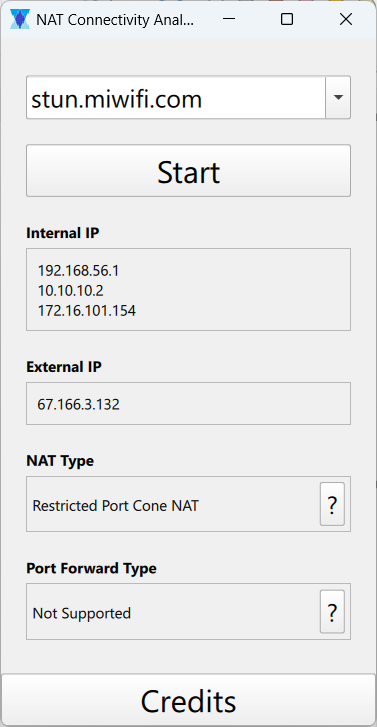
    • Run NAT Connectivity Analyzer on your local computer.

    The different types of NAT can generally be placed in the following buckets:

    • Full Cone NAT: Communication is very easy with this NAT type – too easy. Most applications will work without difficulty but the users behind the NAT are unknowingly vulnerable to a variety of attacks. Most modern routers are moving away from this kind of NAT.
    • Restricted Cone and Port Restricted Cone: These kind of NATs only allow outgoing connections. The problem is, what if both users sit behind these NATs, how do they both “place the call”? In order to support these types of NAT, the application must use a matchmaking service so that both sides create outgoing connections at the same time. It’s kludgy but after a few attempts it’s completely possible to create a connection.
    • Symmetric: This NAT type makes peer-to-peer connectivity impossible. It is mainly used in business settings where it is important to keep tight control over how computers connect to each other. If you have a symmetric NAT, your best option is to enable automatic port forwarding (see below).

    Another Option: Automatic Port Forwarding

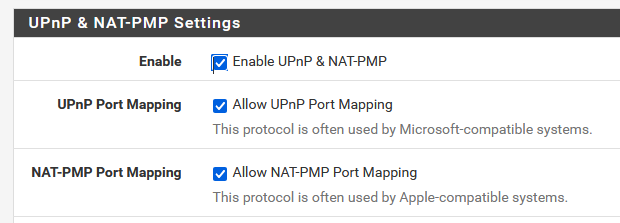
    Some routers have an option to forward incoming traffic automatically. This is usually named Automatic Port Forwarding but might instead be called UPnP, NAT-PMP, or PCP.

    If you’re having trouble with your NAT, you can turn these features on and see if it solves your problem. Try running NAT Connectivity Analyzer, as it can not only detect if your router has these features enabled but it will test them and make sure they are working correctly. It will also tell you whether your router’s port forwarding is one way or two way, which may matter to the program that you’re running.

    One word of caution: many computer security experts recommend keeping this feature turned off. UPnP in particular gained a bad reputation many years ago due to some poorly designed routers but modern routers do not have the same problems. The best advice here is to not enable it needlessly, but there is little harm in keeping it on if you need it.

    A Common Complication: Double NAT

    A double NAT occurs when one router with NAT is plugged into a second router with NAT. This generally happens in two scenarios:

    • Your Internet Service Provider doesn’t have enough IP addresses and is using carrier-grade NAT (CGNAT) to share them among users.
    • Your local network has too many routers.

    There is not much you can do about the former scenario (other than switch to a different Internet Service Provider) but it is worth exploring the second scenario.

    The easiest way to detect a double NAT is to turn on automatic port forwarding and then run NAT Connectivity Analyzer. It will try to open a port and if it detects a second NAT then it will let you know.

    Double NATs are usually a minor nuisance and many users live with them just fine but if you’re having networking issues then it may be worth resolving. There are two approaches to getting rid of a double NAT:

    • Move as many devices as possible from the inner NAT (usually a wireless router) to the outer NAT (usually a modem).
    • Switch the outer NAT (usually a modem) into bridging mode and configure your inner NAT router to connect to the ISP directly. This is a good solution if you’ve purchased a router with significant features that the other router doesn’t have (such as VPN).

    Conclusion

    The Internet was originally designed so that any computer could talk directly to any other computer. The modern Internet has discarded this design somewhat, moving in favor of client devices that connect directly with large corporate services. Most routers today are built with this in mind and prioritize securing the local network against attackers over enabling peer-to-peer communication.

    Peer-to-peer is still possible however and many exciting apps, games, and devices use this methodology. It is worth getting to the bottom of your local router’s NAT in order to unlock these abilities.