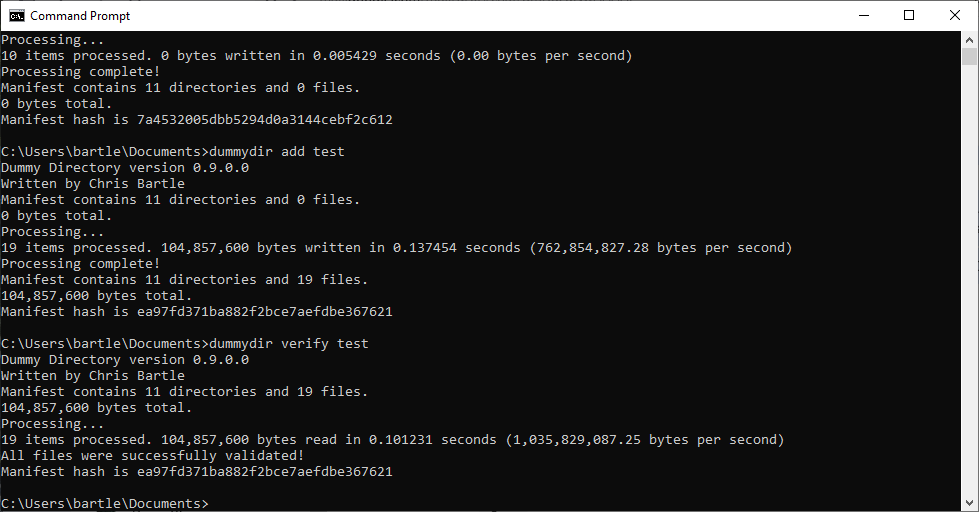
Do you need to test a USB drive you purchased off of eBay or a multi-petabyte array you did not? Do you want to run your backup solution through its paces before you trust it with real data? Do you want to benchmark your disc performance and Crystalmark isn’t precise enough for you? Dummy Directory can solve your problems – and more!
Dummy Directory is a cross platform, command line utility that can fill a directory with “dummy” data, meaning data that has no real purpose or meaning but can be definitively verified. Dummy Directory emulates all basic file/directory operations such as add, modifying, and deleting. It can be used once, to create an arbitrary amount of data, or as an ongoing testing process.
Here’s a list of its features:
- Written in basic C++ and completely cross platform
- Extremely fast, beating other benchmarking tools in certain situations
- A true 64 bit application that supports data generation into the exobyte range
- All of the Dummy Directory data generates an MD5 hash and can be verified for consistancy at any time.
- Data generation is done pseudorandomly and deterministically either from a random or given seed. In addition, all commands are automatically logged in a “replay” file so that the contents of any directory can be easily recreated as needed.
- Free and open source
How it Works
Every time its called, Dummy Directory should be given a target directory – this is the “dummy directory” where Dummy Directory will write its dummy files.
The files are pseudo-randomly generated and Dummy Directory can create 3 kinds: binary (truly random data), text (randomly chosen words from a randomly generated dictionary), or sparse (binary files that are only about a quarter full). Dummy Directory will only manipulate files that it creates.
In each target directory, Dummy Directory maintains a file named DummyDirectory.manifest. This is a simple text file that lists all of the files and directories in the target directory, as well as their file sizes and MD5 hashes. Dummy Directory can compare the files in the directory against this manifest and determine if any files are missing or have been corrupted since they were first written. Dummy Directory also computes an MD5 hash of the manifest file itself and displays it after each operation, making it straightforward to compare directories.
Each target directory also contains a DummyDirectory.replay text file. This is effectively a log of all Dummy Directory operations executed in the target directory as well as their seed values. A replay file can be handed to Dummy Directory, allowing it to recreate an identical version of any dummy directory.
Installation
Dummy Directory is a basic C++ application that can be easily installed onto nearly any operating system
Windows executable (1.0.3.0)
Linux Debian package (1.0.3.0)
Linux RPM Package (1.0.3.0)
Other OSes:
The simplest approach is to install from the github:
git clone https://github.com/chrisbartle/DummyDirectory
cd dummydir
cmake -S . -B build
cmake --build build --parallel
sudo cmake --install build
Operations
Each time Dummy Directory is run, it performs a single operation. Operations affect some random selection of files inside the target directory. The following operations are supported:
- add – Files are added to the target directory, placed inside any of the subdirectories at random. –size, –count, –filetype, –fileseed, and –filesize are all applicable flags. By default, this operation produces 100MB of data with each file sized at between 1KB and 10MB. The following types of files can be added:
- binary – Binary files have a .bin extension and contain a random string of bytes. Binary files can not be compressed.
- text – Text files have a .txt extension, contain a random string of words, and can be opened with a text editor. Text files are highly compressible.
- sparse – Sparse files have a .sprs extension. They contain binary data but the majority of the file is empty. Sparse files are compressible.
- modify – Files are chosen at random and modified. –size, –count, –fileseed, –filesize, and –modifytype are all applicable flags. By default, this operation attempts to modify 10% of the target directories size and each file is modified by a random amount (between 5% and 100%) using a random modification type. The following modification types are supported:
- append – New data is appended to the end of the file
- truncate – Data is removed from the end of the file
- overwrite – A section of the file is overwritten
- chop – A section of the file is removed
- insert – Data is inserted inside of the file
- random – A modification type is picked at random
- delete – Files are chosen at random and deleted. –size and –count control how many files are deleted. By default, this operation deletes 10% of the files.
- rename – Files are chosen at random and given a new name. –size and –count control how many files are renamed. By default, this operation renames 10% of the files.
- move – Files are chosen at random and moved to a different directory. –size and –count control how many files are moved. By default, this operation moves 10% of the files.
- dadd – Directories are added to the target directory. –count controls how many directories are created and –maxdepth controls how deep the directory tree may extend (the root directory is at depth 0). By default, this operation adds 10 directories.
- ddelete – Directories are chosen at random and deleted. All files and directories inside of these directories are also deleted. –count controls how many directories are deleted (though more may be deleted incidentally). By default, this operation deletes 10% of all directories.
- drename – Directories are chosen at random and renamed. –count controls how many directories are renamed. By default, this operation renames 10% of all directories.
- dmove – Directories are chosen at random and moved to a different parent directory. –count controls how many directories are moved and –maxdepth controls how deep the directory tree may extend (the root directory is at depth 0). By default, this operation adds 10 directories.
- verify – Dummy Directory verifies that every file in the manifest matches the size and MD5 hash listed in the manifest. All discrepancies are flagged.
- rebuild – Dummy Directory scans the target directory and builds a new manifest based on its contents. Only files created by Dummy Directory will be included. This operation can be used if there was a previous disruption in processing and the directory no longer matches the manifest.
- clean – All files and directories in the target directory are removed. Only files created by Dummy Directory are affected by this operation though DummyDir.replay will never by deleted.
The replay command is a special operation. It’s activated through the –replay flag and given the location of a replay file. Dummy Directory then executes all of the operations listed in the file, in order, so that the resulting directory is a perfect match of the original.
Examples
Dummy Directory is an extremely powerful tool that can used in a variety of circumstances. Here are some examples of frequent and infrequent uses:
Simple Dummy Data
A directory of 1 gigabyte of dummy data can be easily created using the command:
dummydir add -s 1g targetdirIf you need a lot of data, or a lot of files, it may be prudent to add some subdirectories first:
dummydir dadd targetdirVolume Testing
There are many times it may be necessary to test a storage volume (such as an old USB stick or hard drive). This can easily be done by inserting dummy data onto the volume and then verifying it. If we’re testing a 6 terabyte hard drive we could use the command:
dummydir add -s 6t d:\dummydataand then we can verify that the data has not been corrupted by using the command:
dummydir verify d:\dummydataLog File Scenario
Log files can be tricky things because they continuously grow (unless occasionally pruned). The unregulated growth of a directory of log files (say 100 files, each 200 bytes large) can be simulated with the following:
dummydir add -c 100 --filetype text --filesize 200 logThen the following command will append a random amount of data (between 10 and 100 characters) to each file:
dummydir modify -c 100% --filesize 10-100 logLarge Binary Files Scenario
It may occasionally be necessary to simulate the processing of large binary files, such as those used by a database or video editor. In this example, we’ll create 5 TB of data where each file is between 10 GB and 100 GB in size:
dummydir add -s 5t --filesize 10g-100g --filetype binary bintestIf the purpose here is to simulate a backup process, we can simulate data churn by periodically running the following command:
dummydir modify bintestDuplicate File Scenario
Need to create 1000 files but you want them to have only 15 variations? Such a scenario would be an appropriate way to test a filesystem’s de-duplication feature. This command can create such files (1000 files, each binary, each 1 megabyte in size, 15 variations):
dummydir add -c 1000 --filesize=1m --filetype=binary --fileseed=101-115 deduptestPerformance Notes
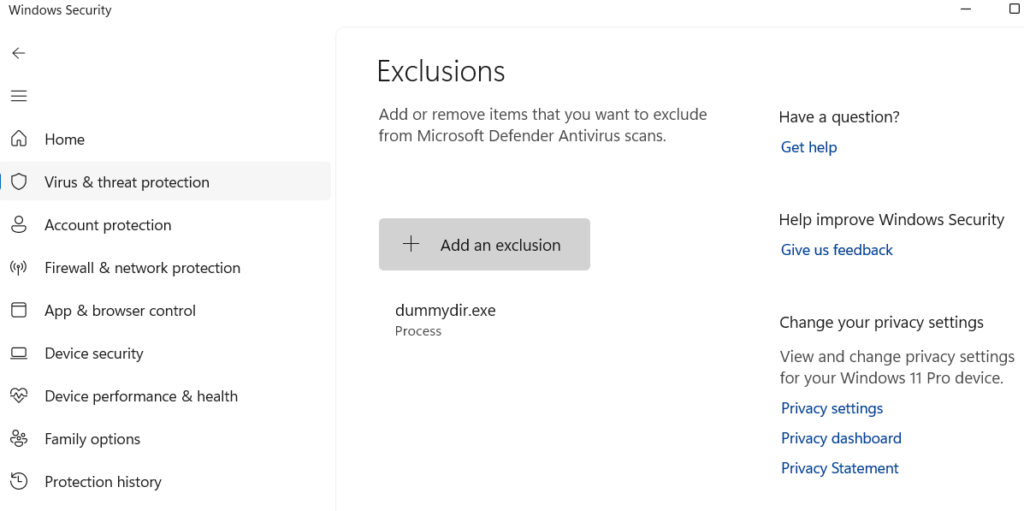
Dummy Directory works fine in Windows but it may run sluggishly due to Windows built-in antivirus protection. As Dummy Directory generates random data the virus protection service takes it upon itself to scan for viruses. Dummy Directory’s performance can thus be greatly increased by entering a process exception for it in Windows Settings: